Section 11 · Settings
One entry per page. Most of these you set once.
⭐ Only four of these matter on day one: General (skill level and units), Camera if you have one, Updates, and About when support asks for your version. The rest are there when you need them.
General
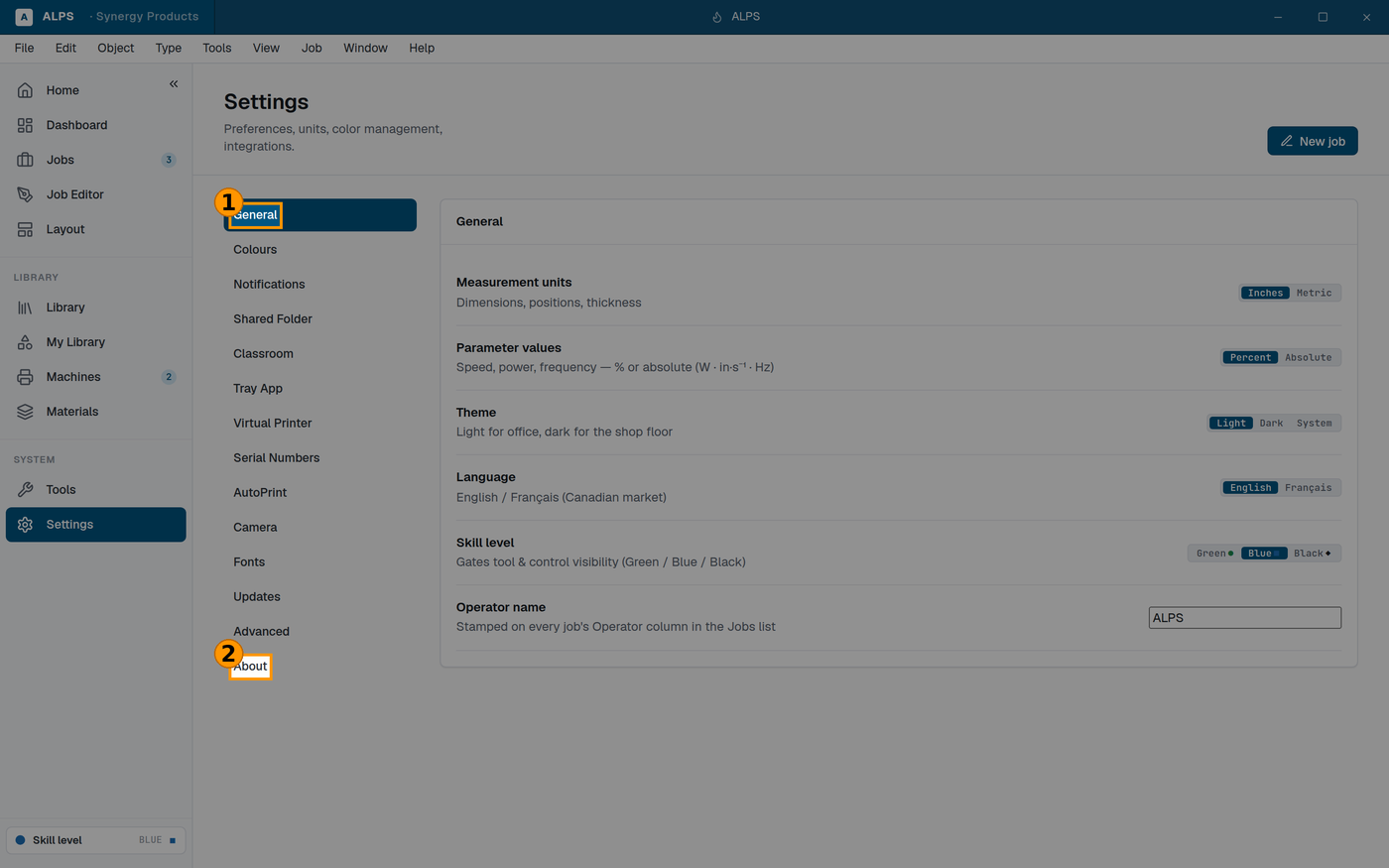
① Skill level — what the app shows you ② About — the version support asks for first
Skill level — see About this manual. Operator name, stamped on every job's Operator column in the Jobs list, so a shared machine's history says who ran what. Measurement units (Inches / Metric), Language (English / Français), and Theme — ⭐ Light for office, dark for the shop floor, which is the app's own advice and a better rule than personal preference: a bright screen in a dim workshop is hard to read next to a running machine.
Speed, power, frequency — % or absolute. ⭐ Percentages are the default and match the numbers in Epilog's tables; absolute shows watts and inches per second. Percentages are the safer habit, because they mean the same thing on a machine of a different wattage.
Colours
The standard palette, plus Add a custom swatch for a colour of your own. Since colour is how you assign processes, a consistent palette across your shop means a job from another workstation maps to the processes you expect.
Notifications
Notify on job complete and send failure — desktop toast, a short beep, or a Webhook URL that POSTs a JSON event for an email or SMS bridge.
⚠ Detect job completion by camera (Beta) watches the bed camera after a job is sent and notices when motion stops. ⛔ A completion notice is not permission to leave the machine running unattended. Nothing in this list changes that rule.
Shared Folder
Pool jobs across the shop — a UNC path or local directory. Blank means local-only.
Classroom
Where a classroom's shared machines, materials and recipes live, and Sync shared library to re-read the folder and merge the latest teacher-published entries.
⚠ Your role is set by the shared folder's write access, not by a preference — an admin can force read-only. If you cannot publish, that is why.
Tray App
Run at login, and what the tray does when a job arrives.
Virtual Printer
Register a Windows printer so other software can print into ALPS. The printer writes to ALPS's own incoming folder and needs no configuration.
⭐ Desktop\ALPS Drop is the folder to know. ALPS creates it and always watches it — point
CorelDRAW's Publish-to-PDF at it, or drag a file in. See
Printing to ALPS from other software.
⭐ This is the migration path for a shop with years of CorelDRAW habits — they keep drawing the way they always have.
Serial Numbers
The persistent counters behind Variable Data. See 10.2 — ⚠ they are real state, and a test run consumes numbers.
AutoPrint
Default action for incoming jobs, which laser they go to, which recipe to apply, and a confirmation delay — seconds to cancel before auto-send.
⛔ AutoPrint can send a job to a laser without anyone opening ALPS. That is the feature, and it is worth being deliberate about: the confirmation delay is your window to stop it, and Pause incoming temporarily ignores arrivals without disabling the whole thing.
⚠ Never leave AutoPrint sending to a machine nobody is standing at.
Camera
Share video feed on this network lets other computers watch this machine's bed camera — ⚠ your laser only accepts one control connection at a time, so sharing the view is not the same as sharing control.
Share PIN stops other applications connecting by accident. ⛔ Every ALPS ships with the same PIN — change it.
Editor camera window shows the live bed as a floating window while you work.
Fonts
Fonts available for text. ⚠ See Section 5.3: convert text to path before a job leaves this computer, or it reflows wherever the font is missing.
Updates
Checking for updates, and the Library update manifest URL for template packages.
License
License verification runs in the desktop app. This page shows the computer fingerprint to give
Synergy Products when requesting or moving a seat, the currently verified customer and tier, and
the license expiry state. Paste the complete .alps-license file contents and choose Apply
license; ALPS verifies the signature and computer binding in its Rust backend before installing
it. A failed apply does not replace the installed license.
Remove license removes the locally installed envelope. ALPS remains usable with Green functionality and shows an unlicensed reminder; Blue and Black selector levels require a valid license (or a license in its grace period). The browser development build does not manage licenses.
Advanced
Backup / restore — exports preferences, materials, machines, jobs and serial counters to a single file. ⭐ Do this before you change machines or reinstall. The serial counters alone are worth it; they are the one thing you cannot reconstruct.
Log level and Development debugging turn on diagnostic captures and extra logging.
Report a problem saves recent logs and system info as a ZIP you can email to support — ⭐ no data leaves your machine until you send it yourself.
Get a calibration from another computer — ⚠ cross-computer calibration pickup is not yet verified end to end.
About
The version — this is what support asks for first — and the open-source licenses.