Section 10 · Production work
The features that turn one part into a hundred.
10.1 Variable Data — a different value on every part
One layout, a list of values, and every copy comes out different. Conference badges, asset tags, numbered awards, pet tags.
⚠ It is not on the Tools screen, and it is not called "Variable Data" where you open it. Three ways in, all the same tool:
- The Tools menu on the menu bar ▸ Template Maker — ⭐ the one to remember.
- The Template Maker entry in the Job Editor's tool strip ■.
- Library ▸ Designs, with the category set to Variable Data.
⚠ Two different things are called Tools, and this is where it bites: the Tools screen on the left-hand rail (Section 9) and the Tools menu on the menu bar are not the same list. Template Maker is only on the menu.
⚠ It has three names, and you will meet all of them. You open Template Maker; the panel carries Template Maker above Variable Data Badging; and the Library category is Variable Data. Same tool. ⭐ If you are searching for one of those words and finding nothing, try the others.
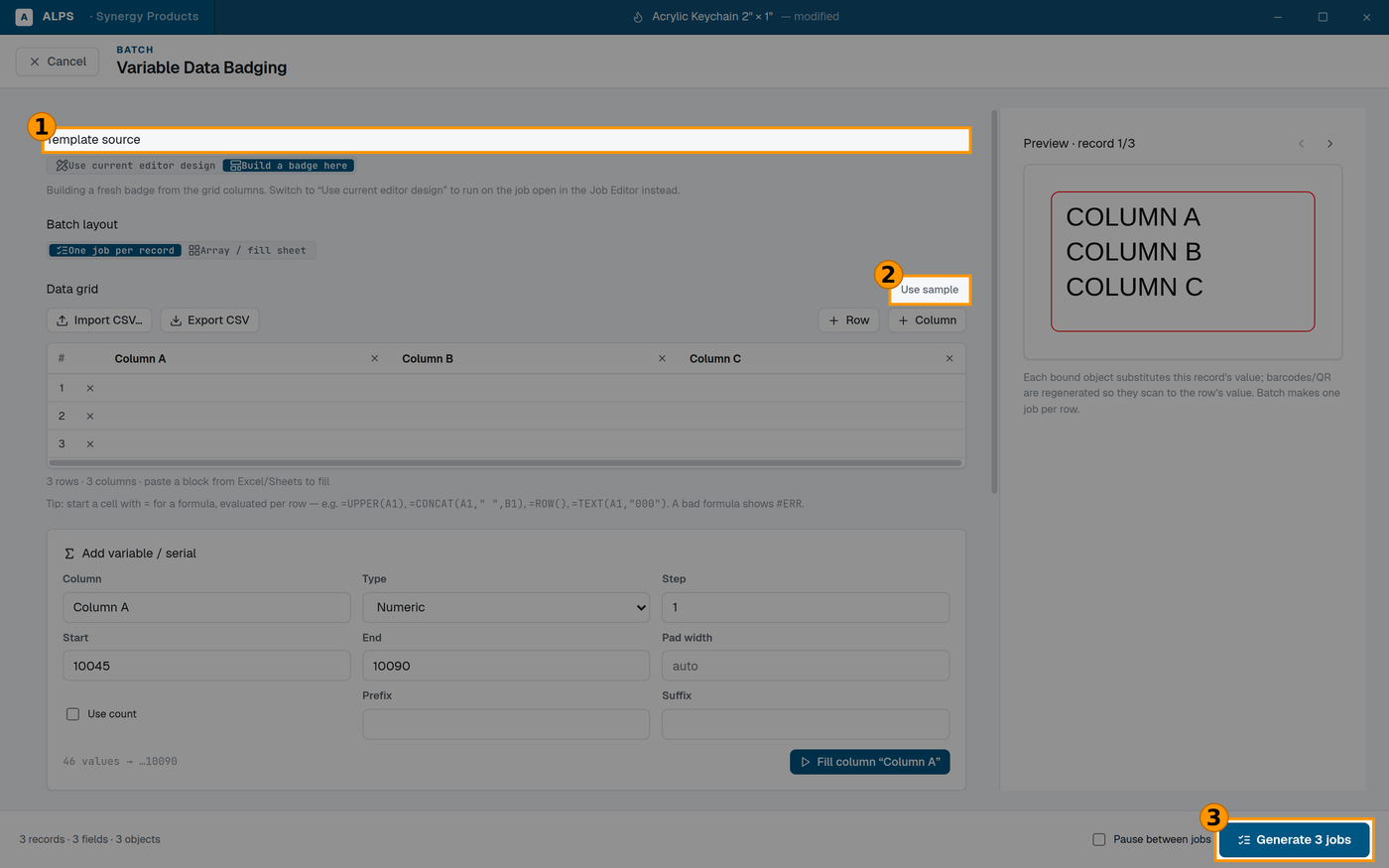
① Template source — build a badge here, or run on the design already open in the editor ② Use sample fills the grid with placeholders, so you can fix the layout BEFORE real data ③ It tells you how many jobs it will make before you commit
How it works: you build the artwork once, then bind an object to a Data grid column. That object becomes a Template object — the thing that changes per row.
⚠ If the panel says No objects — add one to bind a grid column, that is the step you missed. The data comes second; something has to be bound to it.
Batch layout decides how the copies are arranged on the sheet.
⭐ Use sample fills the grid with placeholder values so you can see the layout working before you have real data. Do this first — it is much easier to fix a layout with sample rows than to discover the problem on a customer's list of 200 names.
⚠ A row that cannot be encoded is skipped, and ALPS says so: "This row will be skipped in the batch until the value can be encoded." That is usually a character the barcode symbology cannot carry. ⛔ Read that warning rather than dismissing it — a skipped row is a part that silently does not exist, and you will find out when the count comes up short.
Date / time fields insert the date automatically, with the format built from the tokens shown on
the panel (YYYY, MM, DD, HH and so on).
10.2 Serial numbers
A Persistent serial register counts across jobs — so the next run continues where the last one stopped, rather than restarting at 1.
⭐ That persistence is the whole point, and it is also the risk. The counter is real state: if you run a test batch, those numbers are used. Check where the register sits before a production run, not after.
Alphanumeric serials are supported where plain numbers are not enough.
10.3 Nesting — fitting more parts on a sheet
Nesting packs shapes onto the material so you get more parts from it.
⭐ On the Tools screen under In the Job Editor, or from the wrench in the editor's tool strip (Section 3.3). Same tool either way.
| control | what it does |
|---|---|
| Copies to make | how many |
| Packing mode | how hard it tries |
| Rotation step | how freely parts may turn to fit |
| Allow mirroring | whether a part may be flipped |
⛔ Do not allow mirroring or free rotation on material that has a direction. Wood grain, brushed metal, leather grain and anything printed all have a right way up. A mirrored part is scrap, and the nest will look beautifully efficient right up until you see the sheet.
Click a cell to exclude it marks areas of the sheet as unusable — an offcut, a flawed patch, a region already used. Reset to full bed clears that.
⭐ Excluding the damaged part of a sheet is how you use up remnants, which is where the margin on sheet goods actually is.
10.4 Tags and badges in batches
For repeated tags and badges there is a dedicated batch path, and the Library carries blanks with their sizes and zones already set — see Projects.
⭐ Pair a batch run with Mark Verification in batch mode: it reconciles what you engraved against the list, and finds the item that got skipped. A part-by-part check cannot find that, because the missing part is the one nobody is holding.
10.5 Rotary work
⚠ Run the Rotary Test Pattern before the first real job on a new shape. Rings show a scaling error instantly; a stretched logo does not.
The Library carries drinkware blanks with diameters and engrave zones — pick the one you have rather than typing dimensions.
⚠ Measure the diameter where the artwork will sit, not at the widest point. Tumblers and glasses taper.
Next: Section 11 · Settings