Section 7 · Sending to the laser
7.1 Before you press Send
Four checks, and they take about ten seconds together:
- ⛔ Which process runs first? Engrave before cut. See 6.4.
- Is the material where the job thinks it is? Check the placement, on the bed photo if you have a camera.
- Is it focused?
- ⛔ Is the exhaust running, and is air assist on?
⭐ Operators who have been doing this for years still run this list. It is not a beginner's checklist — it is the one that stops the expensive mistakes.
7.1.1 Watch it run first — the Simulator ⭐
Simulate in the Job Editor toolbar plays the job through before any of it is real. It is the cheapest check in this manual: it costs a few seconds and it catches the mistakes that otherwise cost a sheet of material.
It shows you:
- The order things actually happen in — every process, in the sequence the machine will run them. This is where "I cut before I engraved" becomes obvious while it is still free to fix.
- Where the job sits on the bed, on the material, with the bed's own 0,0 marked (Section 4.3.1).
- The path the beam really takes — not the line you drew. If you have kerf compensation on, the cut line is offset from your artwork and the simulator shows both, with your original drawing as a dashed grey line underneath. Seeing them differ is the point: it is how you tell an outside offset from an inside one at a glance.
- Tabs as real gaps, in the places they will actually be, and lead-ins and lead-outs as the stubs they are. ⚠ A lead pierces off the part — if it pierces into a neighbouring part, this is where you find out.
- Bridges as their own pass at the end, if you gave them a bridge power (Section 6.7.1).
- How long it will take, and how the time is split between passes.
⛔ One thing it cannot show you: whether your settings are right for the material. The simulator knows the geometry and the order, not how your acrylic behaves. That is what a test cut is for.
⚠ If a kerf side is set but the beam width is still 0.000″, the simulator says so in words — it has to, because at zero width the compensated path is identical to no compensation at all and no picture could show the difference. Your parts would come out beam-width undersized.
7.1.2 Frame the job on the real bed ■
The simulator shows you where the job sits on screen. Frame job shows you on the machine.
Switch on Frame job (called Trace outline on a fiber galvo) and ALPS queues a zero-power job ahead of your real one. Run it and the machine traces the outline of your work without marking anything, so you can see exactly where it will land and slide your material under it.
- On a flatbed, the head itself traces the outline at zero power. It never marks.
- On a fiber galvo, run it with the door open: the interlock stops the laser from firing and the red aiming pointer traces the shape for you. Lay the part under the red line, close the door, then run the real job.
Two shapes to choose from:
| Hull | one loop around everything — fastest, and all you need to check the job fits. |
| Objects | the true outline of every shape — slower, and what you want when you are landing artwork on a specific part. |
⭐ This traces the ACTUAL shape of your artwork, not a rectangle around it. The machine's own panel can only show you a bounding box, which is no help at all when you are positioning a round badge or an irregular offcut.
⚠ It is only ever queued, never sent automatically — so it cannot run, and cannot fire, until you choose to run it.
⭐ When to bother: expensive material, an offcut you are trying to fit onto, anything on a jig, and any job where being 1/4″ out means starting again. It costs a few seconds.
7.2 Sending
Send to Laser.
The job shows Sending…, then Queued once the machine has it.
⚠ Queued means the machine accepted the job. It does not mean the job is running. On an Epilog you still start the job at the machine — which is deliberate, because a laser should not begin firing because somebody clicked something in another room.
If it says Send failed, see 7.5.
7.3 What the states mean
A job moves DRAFT → READY → QUEUED → SENDING → RUNNING → COMPLETE.
The Jobs list shows the state as a coloured pill:
| pill | meaning |
|---|---|
| DRAFT | still being built. Not sent |
| READY | complete enough to send |
| AWAITING ALIGN | ⚠ waiting for you — see below |
| QUEUED | the machine has it. ⚠ Start it at the machine |
| SENDING | in transit right now |
| RUNNING | the job is going |
| COMPLETE | finished |
| FAILED | it did not get there. 7.5 |
⚠⚠ Look for a small est. beside RUNNING. With it, ALPS is estimating — it knows the job was
accepted and how long it should take, but the machine does not report "I am on line 400 of this
job". RUNNING without est. means the machine confirmed it is busy. ⭐ That distinction is ALPS
being honest rather than showing one confident progress bar for both cases. Do not treat an estimate
as a measurement, and do not leave the room on the strength of it.
⛔ And the estimate itself is rough — treat it as an order of magnitude. ALPS works the time out from the job's size, and measured against real machine runtimes it is:
- long on tall, narrow artwork — sometimes by about three times;
- long on single-pass cuts — by about four times;
- closest on large solid engraves, which is the shape it was originally calibrated on.
⭐ What to do with that: use it to compare two jobs, not to promise a customer a collection time. The first time you run a new job, time it — and then you know.
⚠ AWAITING ALIGN is the state people miss. A print-and-cut or registered job stops and waits for you to align it. Nothing is wrong; the job is holding until you do your part, and it can only move on once alignment resolves — it never jumps straight to sending.
⭐ Complete is not the end. A finished job can be re-queued, which is how you reprint the same part months later with the settings that worked.
7.4 The Jobs screen
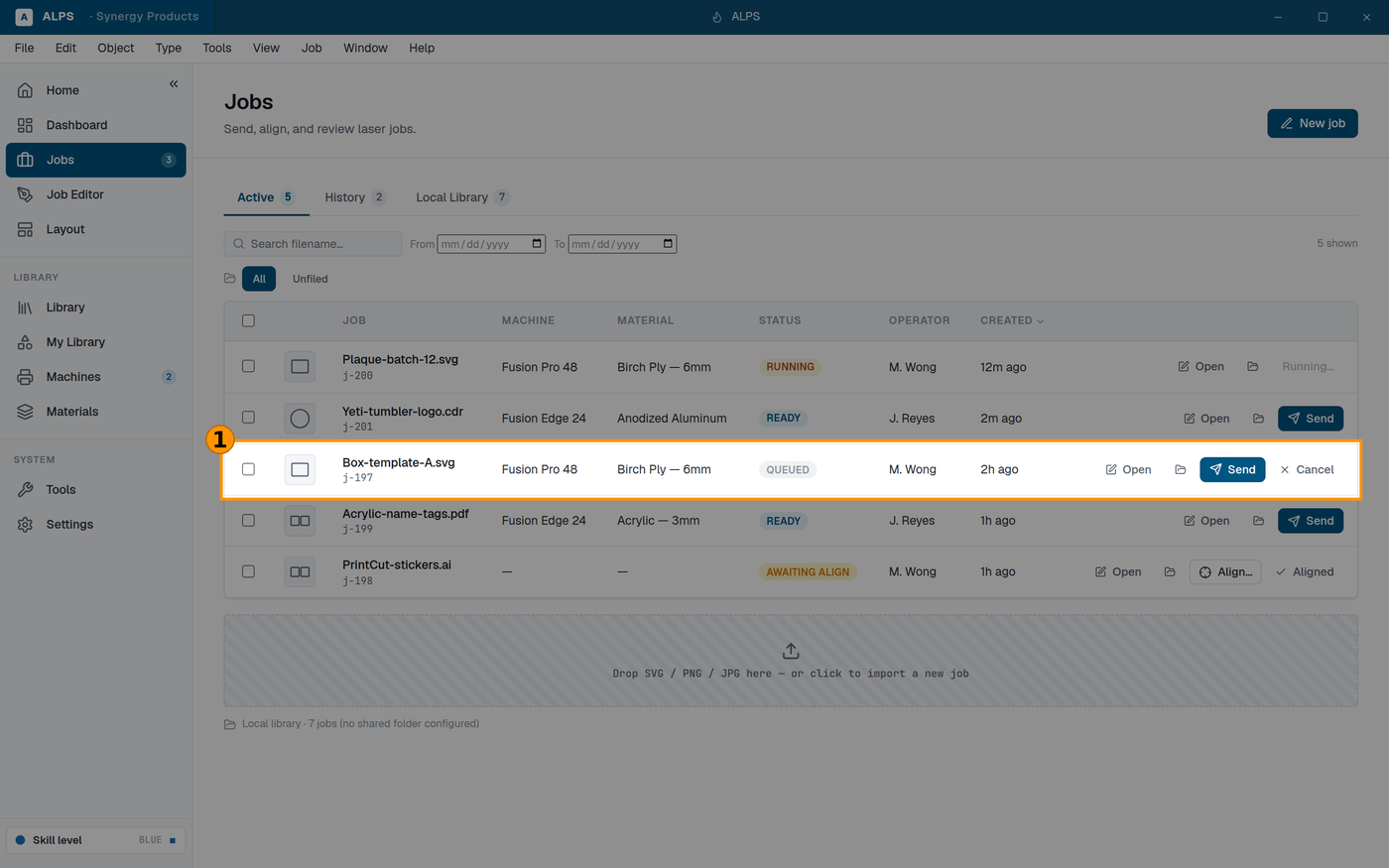
Job state — Queued means the machine HAS it, not that it is running
Jobs is every job — queued, running and finished.
⭐ It is also your record of what you actually ran. When a customer comes back in three months wanting the same thing again, the job you ran is still there, with the settings you used. That is worth more than the file you drew it from, because the file does not remember what worked.
7.5 When sending fails
"Send failed" or "unreachable", but the machine is plainly on.
A ping is not enough — ALPS needs the machine's control service. If ping works and ALPS says unreachable, that service is down. Power-cycle the laser. ALPS is reporting correctly.
It hangs. From version 0.1.199, ALPS gives up after 90 seconds and tells you what to check rather than waiting forever. ⚠ It deliberately does not retry: silently re-sending a job or a movement is how a machine ends up doing something you did not expect.
The job arrived but nothing happens. Look at the machine — it is queued, waiting for you to start it. And check the enable icons: see Troubleshooting 12.1.
7.6 Sending from other software
ALPS installs itself as a printer. You print to it from CorelDRAW, Illustrator or anything else that prints, and the artwork arrives as a job — so an existing shop keeps its drawing habits and changes only where the file goes afterwards.
AutoPrint then turns arriving files into jobs without anyone opening ALPS, and the tray app is what tells you it happened.
⭐ Setting all three up is a chain with a seam that fails silently — see Printing to ALPS from other software for the full setup, in the order to build it and the order to debug it.
7.7 Sharing between computers
A shared folder lets several machines see the same jobs and materials.
⚠ Calibration is per machine, stored on the computer that did it, and cross-computer pickup is not yet verified end to end. Do not assume a second PC inherits a calibration.
Next: Section 8 · The camera