Section 2 · Getting started
From a fresh install to a machine ALPS can talk to.
2.1 First run
The first time ALPS opens it walks you through setup: Welcome to ALPS, then four things.
Measurement units — inches or millimetres. Everything in this manual is inches.
Skill level — ⭐ choose Green. See About this manual. You can change it any time in Settings ▸ General, and you will, once a job needs something Green does not show. Starting high means facing every option before you have a reason to care about any of them.
Your first machine — see 2.2.
Shared folder — leave it as Local (this workstation only) unless you already know you want a shared job pool. ⚠ It is for shops running several workstations against a common set of jobs and materials; setting it up before you need it just adds a place for things to go missing.
Then Finish setup.
2.2 Adding your laser
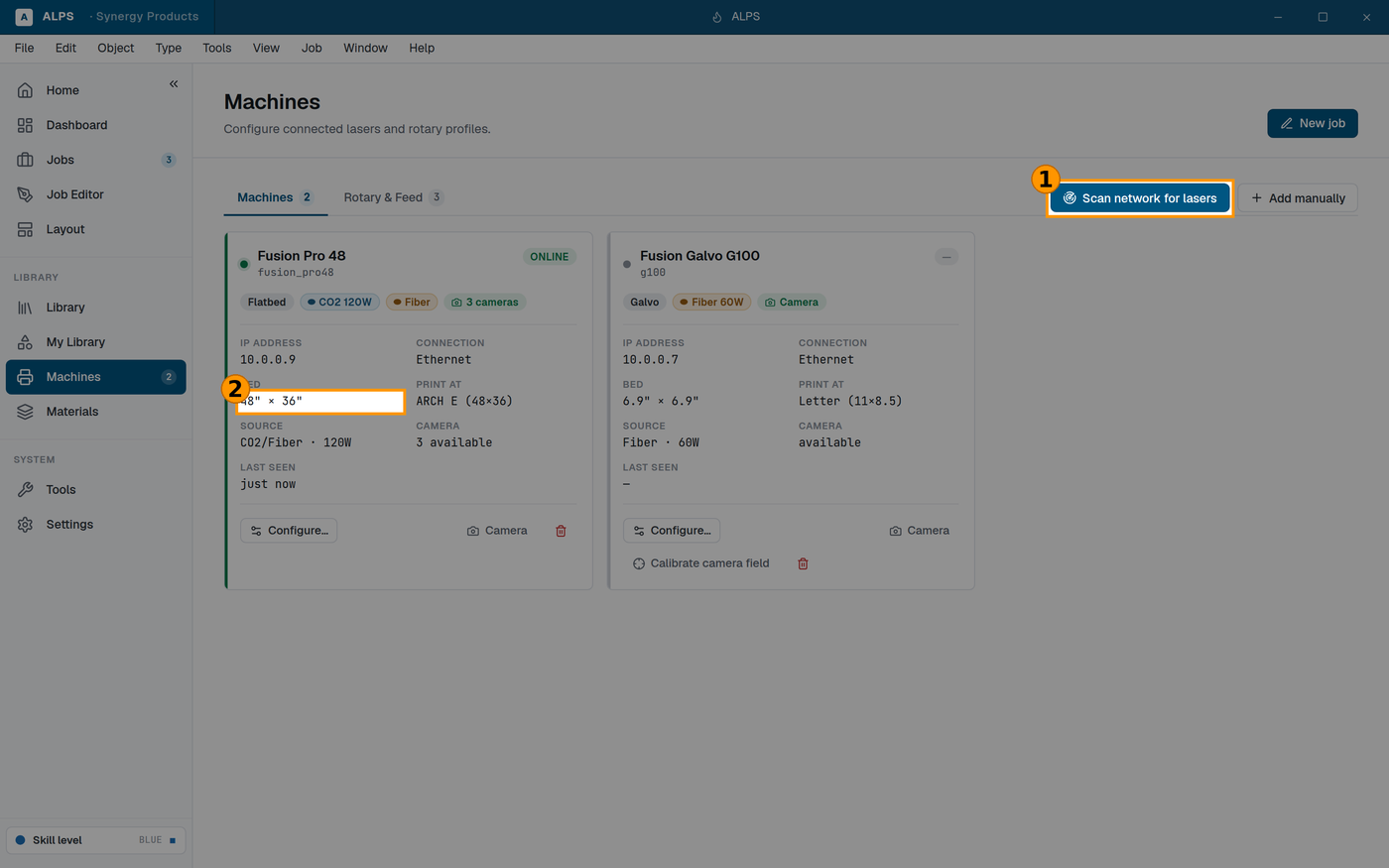
① Find your laser on the network — the usual way to add one ② The bed size — everything positional depends on this being right
Model — pick yours from the list. ⭐ This matters more than it looks: the model sets the bed size, and the bed size is what makes the on-screen bed match the real one. Get it wrong and every placement is wrong in a way that looks like your artwork is at fault.
CO2/Fiber — the laser source. A CO2 and a fiber behave completely differently on the same material, so this is not cosmetic.
Connection — Ethernet or Wi-Fi, and the machine's IP address.
⭐ The IP address is on the machine's own touchscreen. Read it there rather than guessing — Epilog's manual has the section on setting it if it has never been configured.
⚠ Prefer Ethernet. A job is a large transfer and a laser is not a device you want to discover a patchy wireless link on halfway through.
You can add more machines later, and edit any of them, in Machines.
2.3 Check the connection before you need it
Once the machine is added, confirm ALPS can actually reach it — before you have artwork loaded and a customer waiting.
⚠ A ping is not enough. ALPS needs the machine's control service, not just an address that answers. A machine that pings while the service is down looks online and refuses everything.
If it does not connect:
- Is the machine powered on and finished booting? It answers on the network before it is ready.
- Is the IP address what the touchscreen says? They drift when a router hands out a new one.
- Is the computer on the same network? A guest Wi-Fi network usually cannot see the shop's wired devices.
- Still stuck: power-cycle the laser. See Troubleshooting 12.7.
2.4 Set the bed size correctly
If you picked your model, this is already right. Check it anyway in Machines — Bed width (in) and Bed height (in).
⛔ Everything positional depends on this number. The bed drawn on screen, where the camera thinks things are, and where artwork lands are all derived from it. A wrong bed size does not announce itself; it just puts every job in the wrong place, consistently, and looks like a calibration problem forever.
2.5 Then run a job
Go to Your first job and do it at the machine, following along. It is written to be followed rather than read, and it explains the one idea the rest of the software is built on.
⭐ Do it on scrap. The point of the first job is the workflow, not the part.